
The Arithmetic Trainer app is designed to provide learners with simple software targeting this particular math skill, namely addition and subtraction. Starting with 1+1, the problems will gradually involve larger numbers while providing occasional repetition of problems already answered for reinforcement. Training and testing modes are offered. In training mode, the answer must be correct to continue, enforcing accuracy. Testing mode will accept incorrect answers and randomly retest those problems as the learner proceeds. Addition and subtraction are mixed together.
Computitus is dedicated to producing learning software that doesn't attempt to utilize dopamine stimulation with eye-straining graphics, gooey-eyed avatars or unnecessary narratives. Also, avoiding advertising and privacy intrusion as a financial mechanism, the software is sold for a low, one-time upfront price.
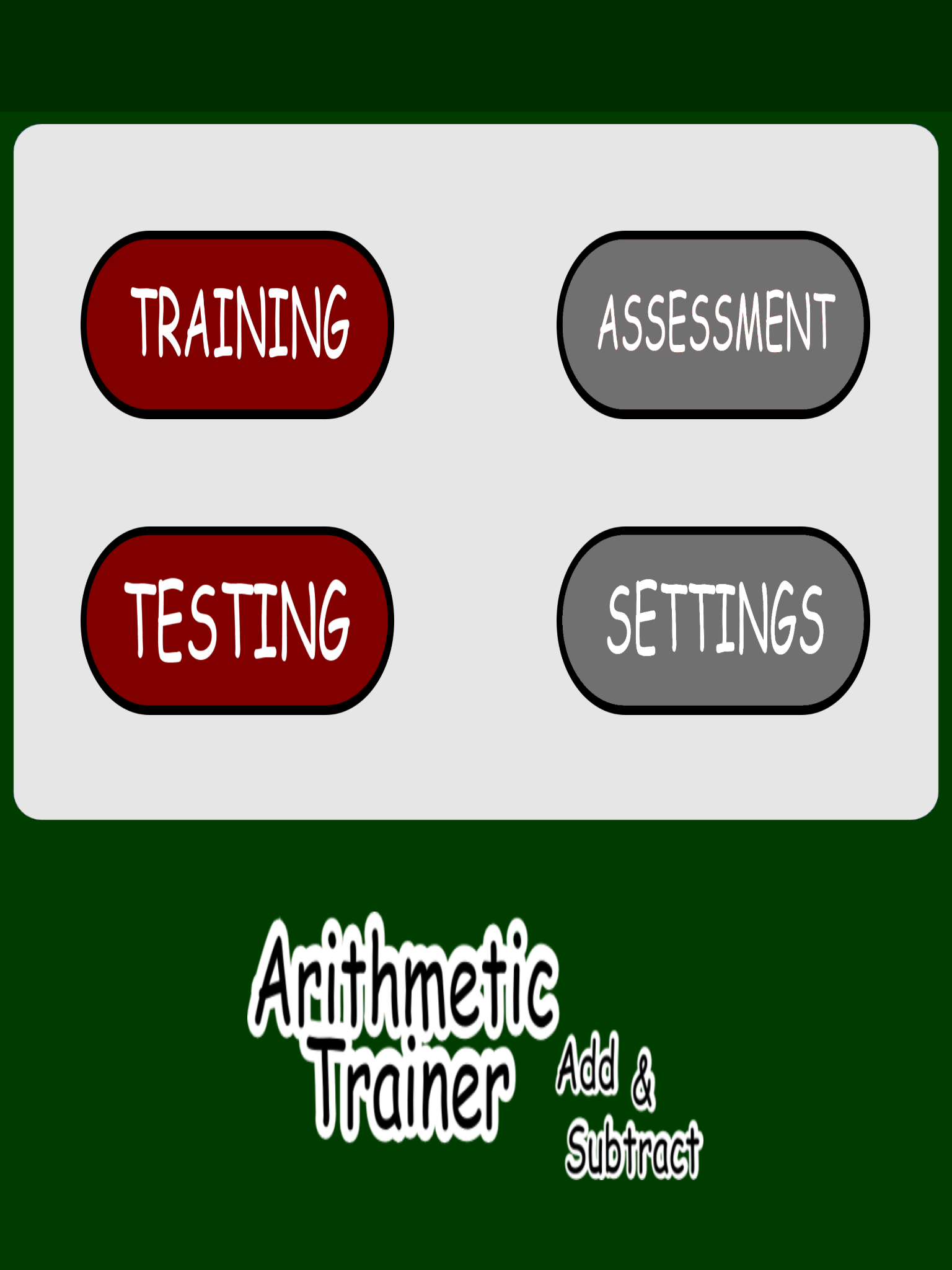
This is the root-level screen. From here, the student can select either the training mode or the testing mode. Assessment and settings are unavailable in the demo version.
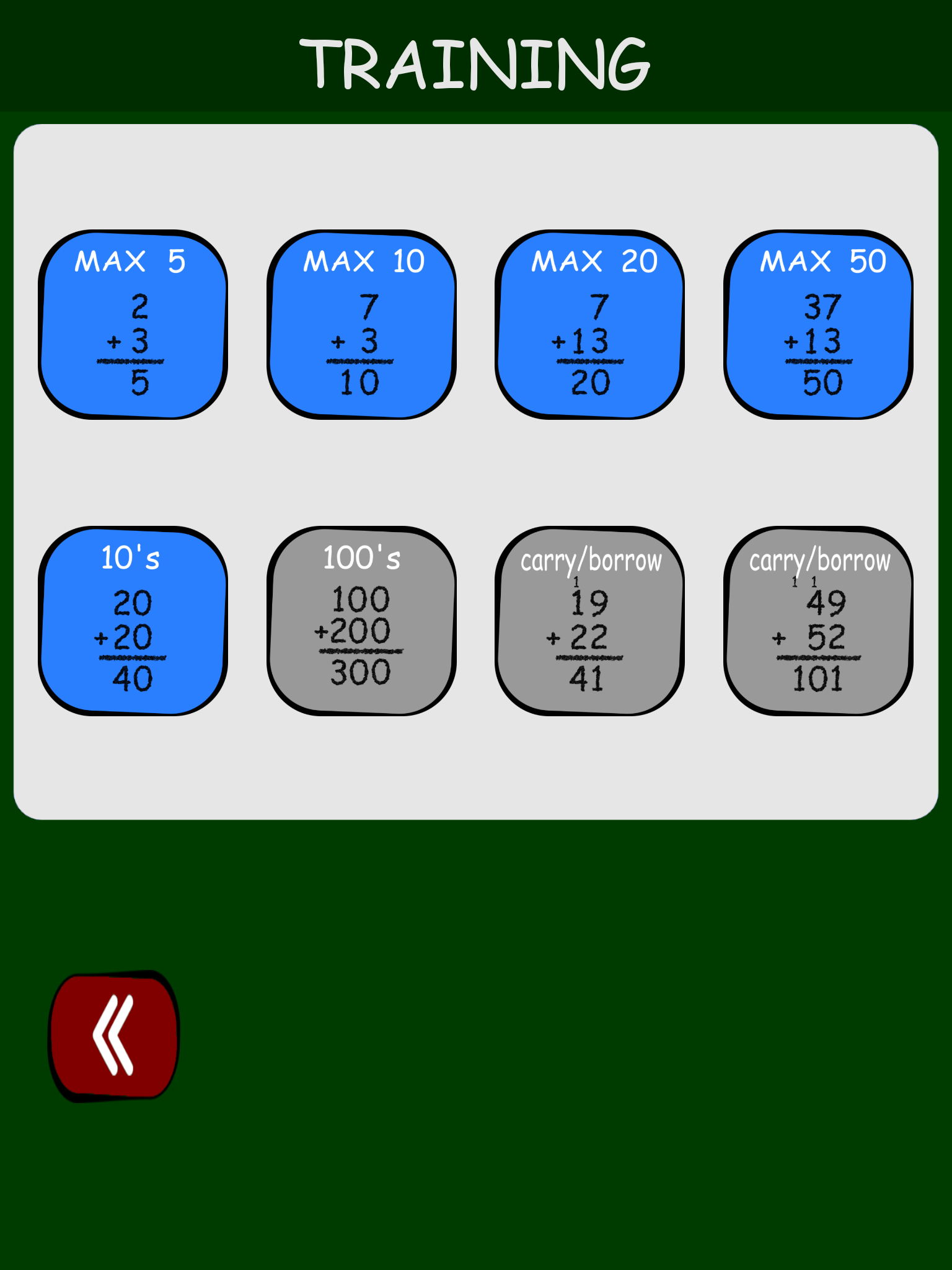
This is the training activity menu. On the top row, the only difference is the maximum sum for addition or , in the case of subtraction, the largest first operand. Choose the maximum to enable repetition within a range suitable to the student's level. The bottom row has other offerings -- addition and subtraction with 10s is the only one available in the current demo version.
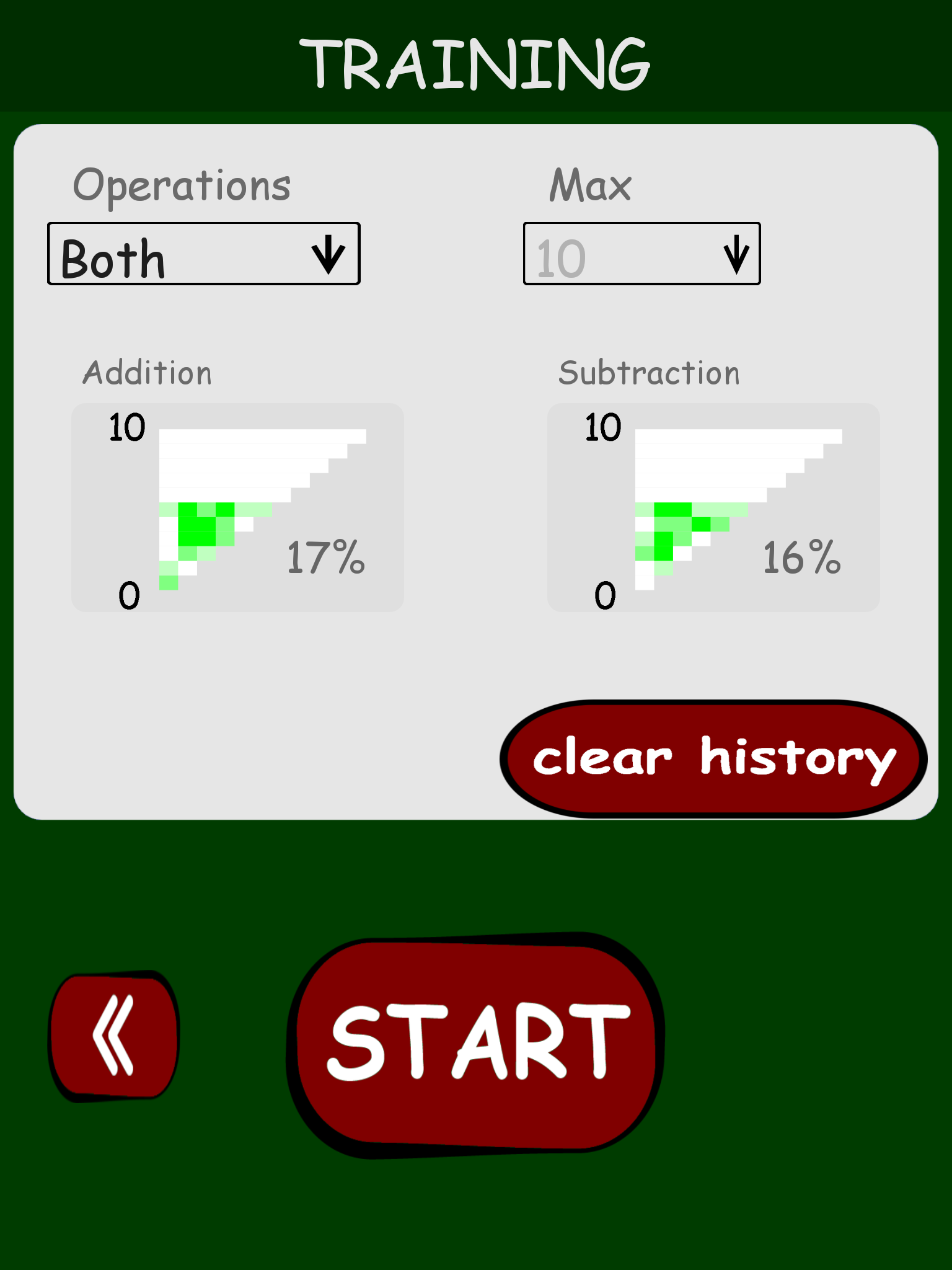
This is the start screen for the selected activity and is pretty much the same for all training activities. The operations to be presented are selectable -- addition, subtraction or both. Progress is indicated graphically for both operations.
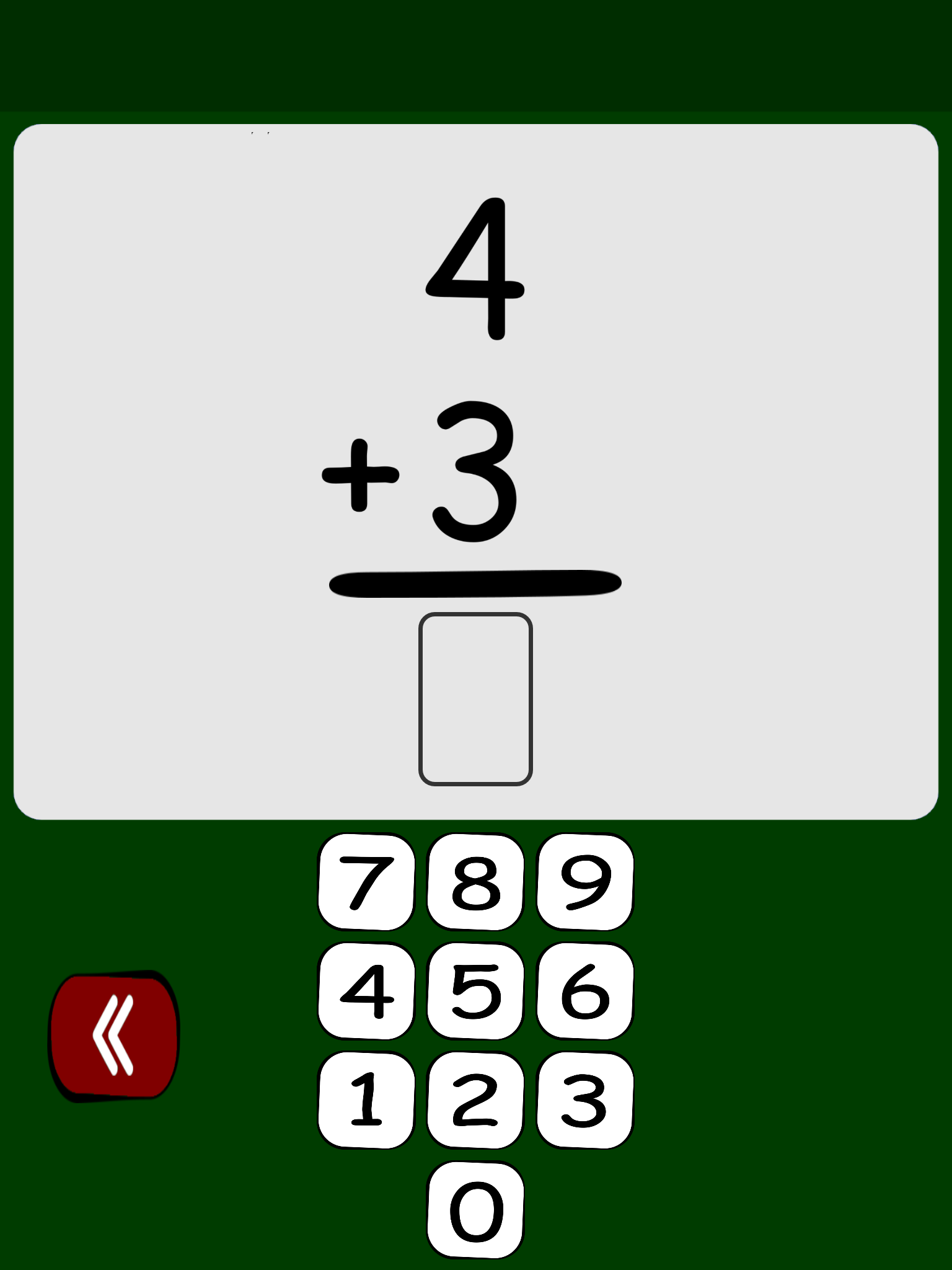
Next is a typical addition problem. In training mode, the answer in each digit must be correct to proceed. When the correct answer is present, the next problem is automatically presented. The student can exit at any time by tapping the back button.
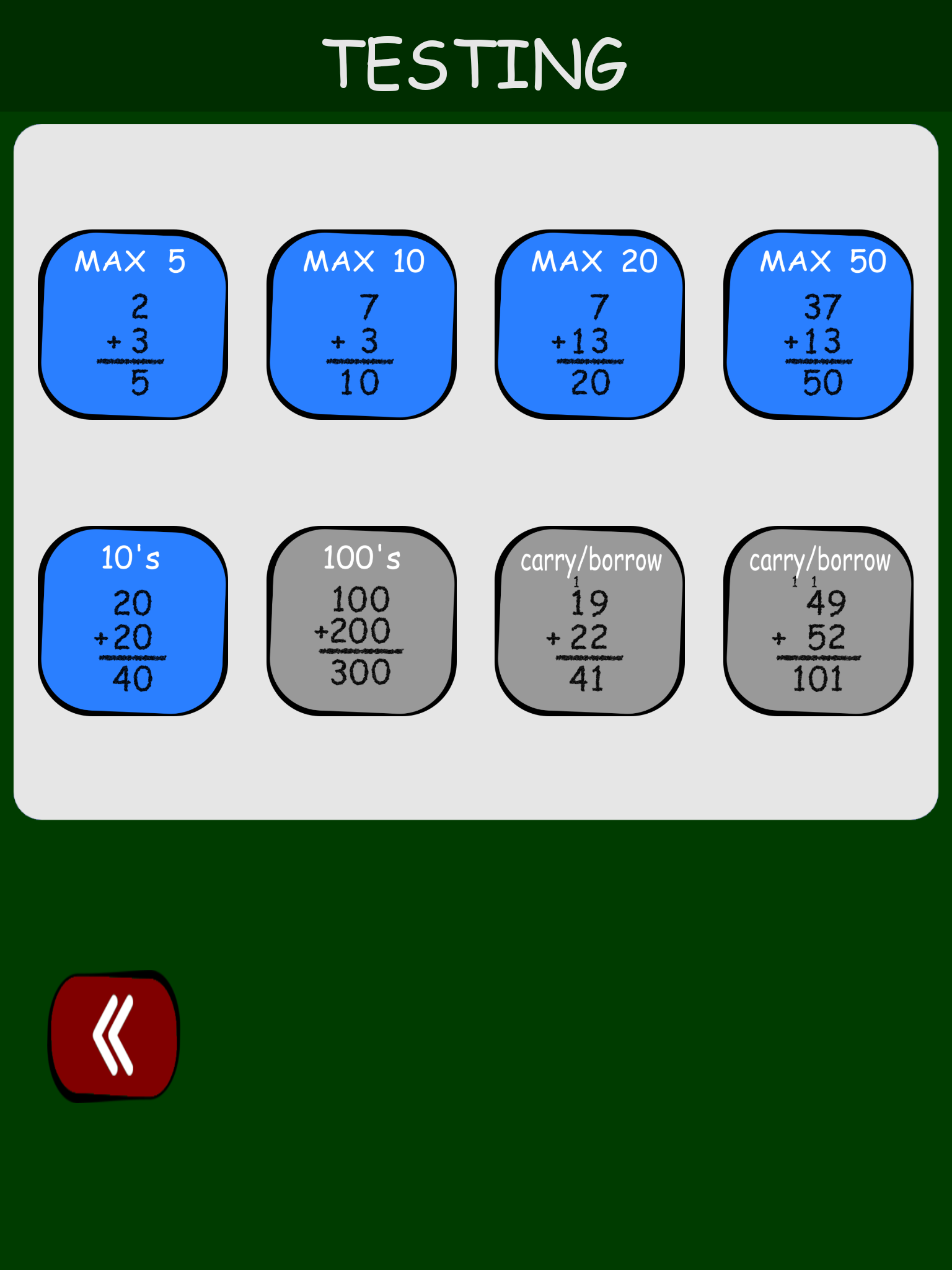
This is the testing mode menu. In testing mode, the problems answered incorrectly can be reviewed by tapping the 'view' button. Clearing history will clear testing data only -- training history will not be deleted.
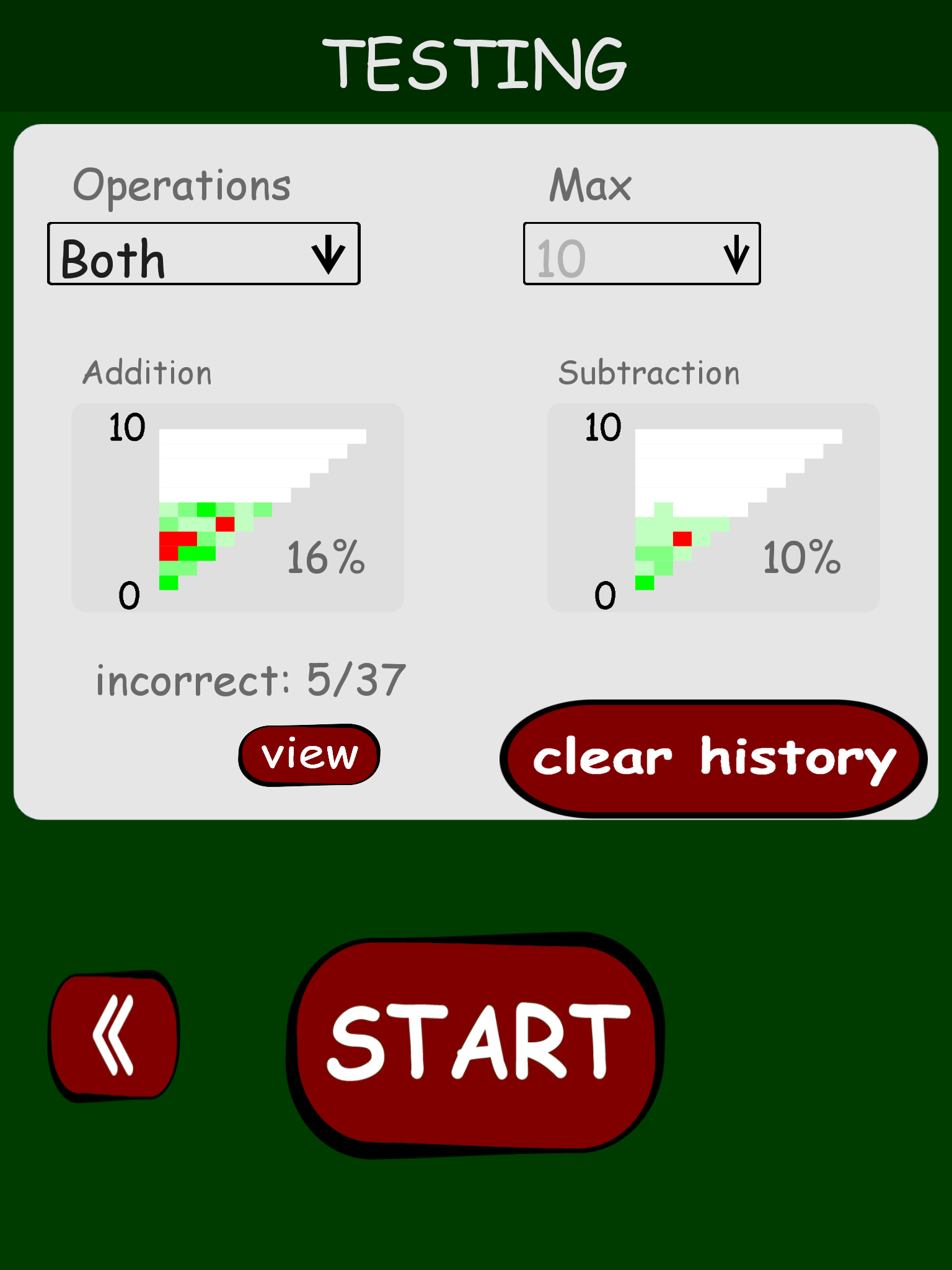
This is the start screen for the selected testing activity. In testing mode, the problems answered incorrectly can be reviewed by tapping the 'view' button. Clearing history will clear testing data only -- training history will not be deleted.
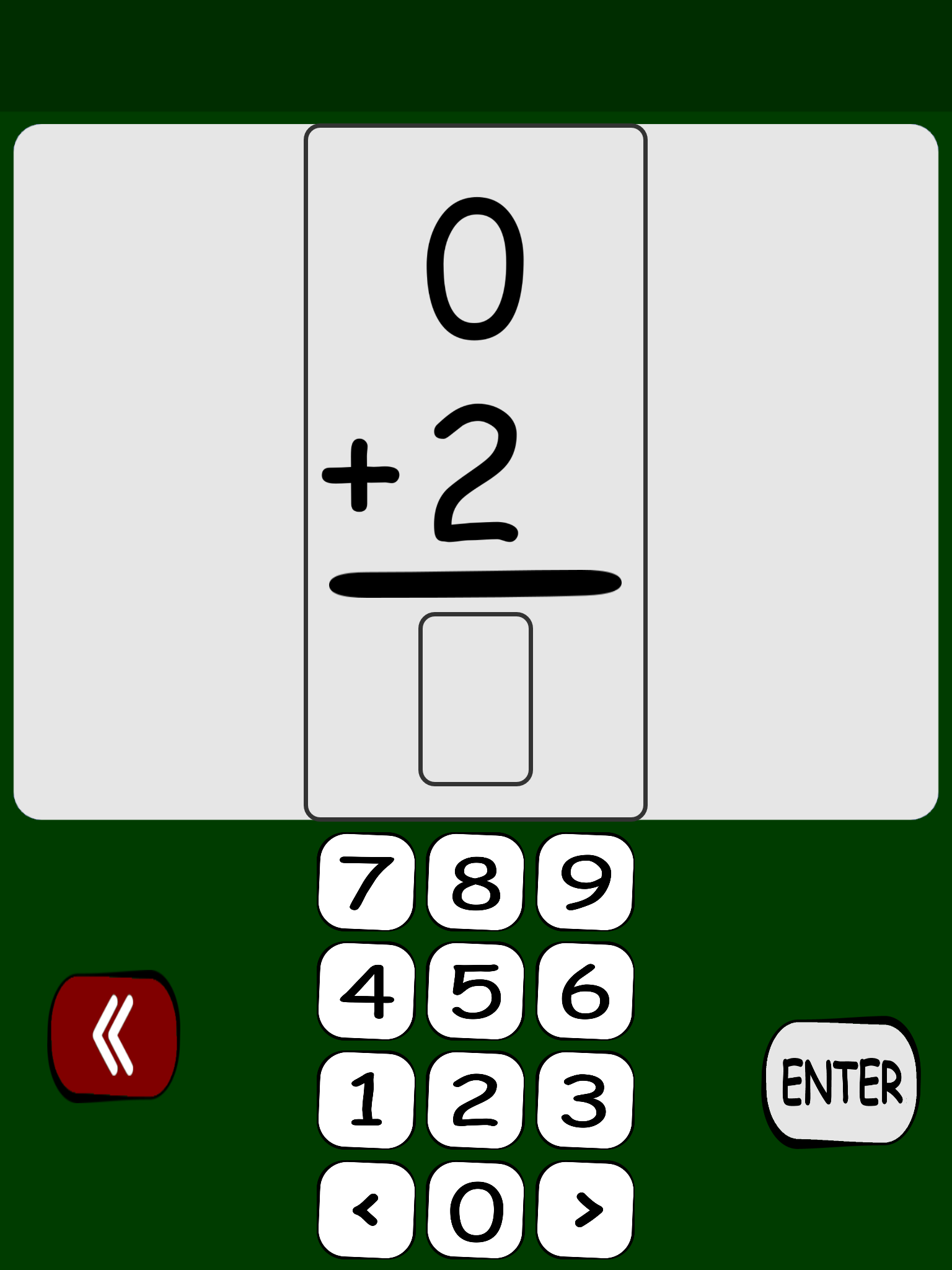
Next is a typical addition problem. In testing mode, the answer is submitted when the 'enter' button is tapped and the next problem is offered. There is no indication as to whether or not the answer is correct. The arrow buttons control the cursor location.
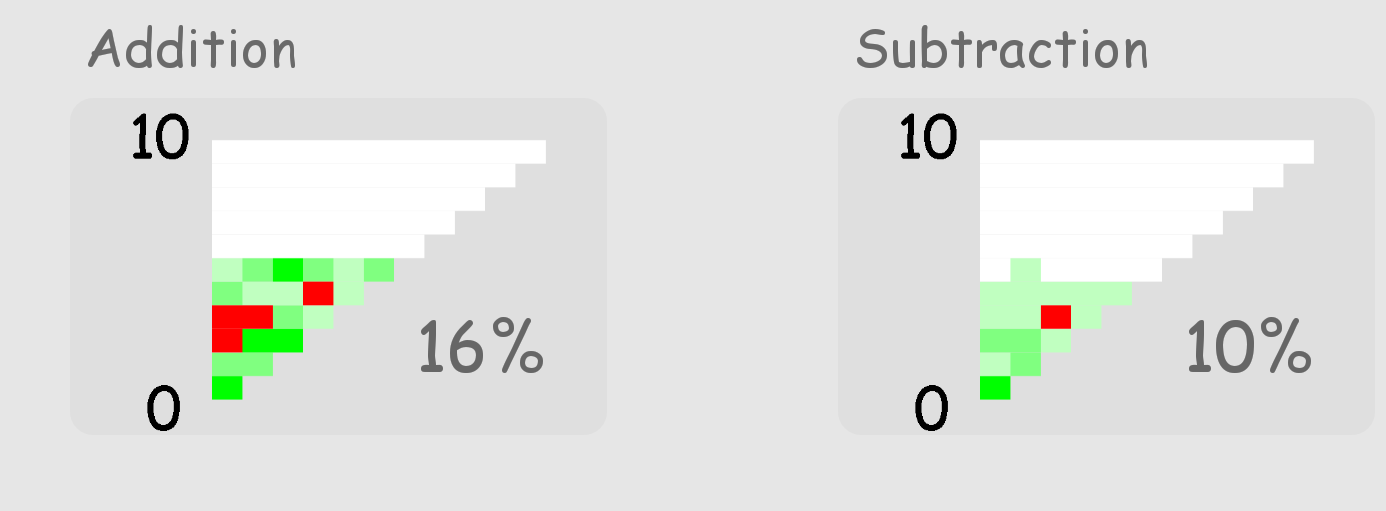
These progress indicators provide a visual for each operator. For addition, the numbers on the left side indicate the answer, or sum, for a specific problem. The horizontal position of a given cell indicates the first operand, which is the top number of a problem in vertical form.
The indicator associated with subtraction is on the right. Here, the numbers on the left side are the first operand of the problem. The number given by the horizontal position of the cell is the answer to the problem.
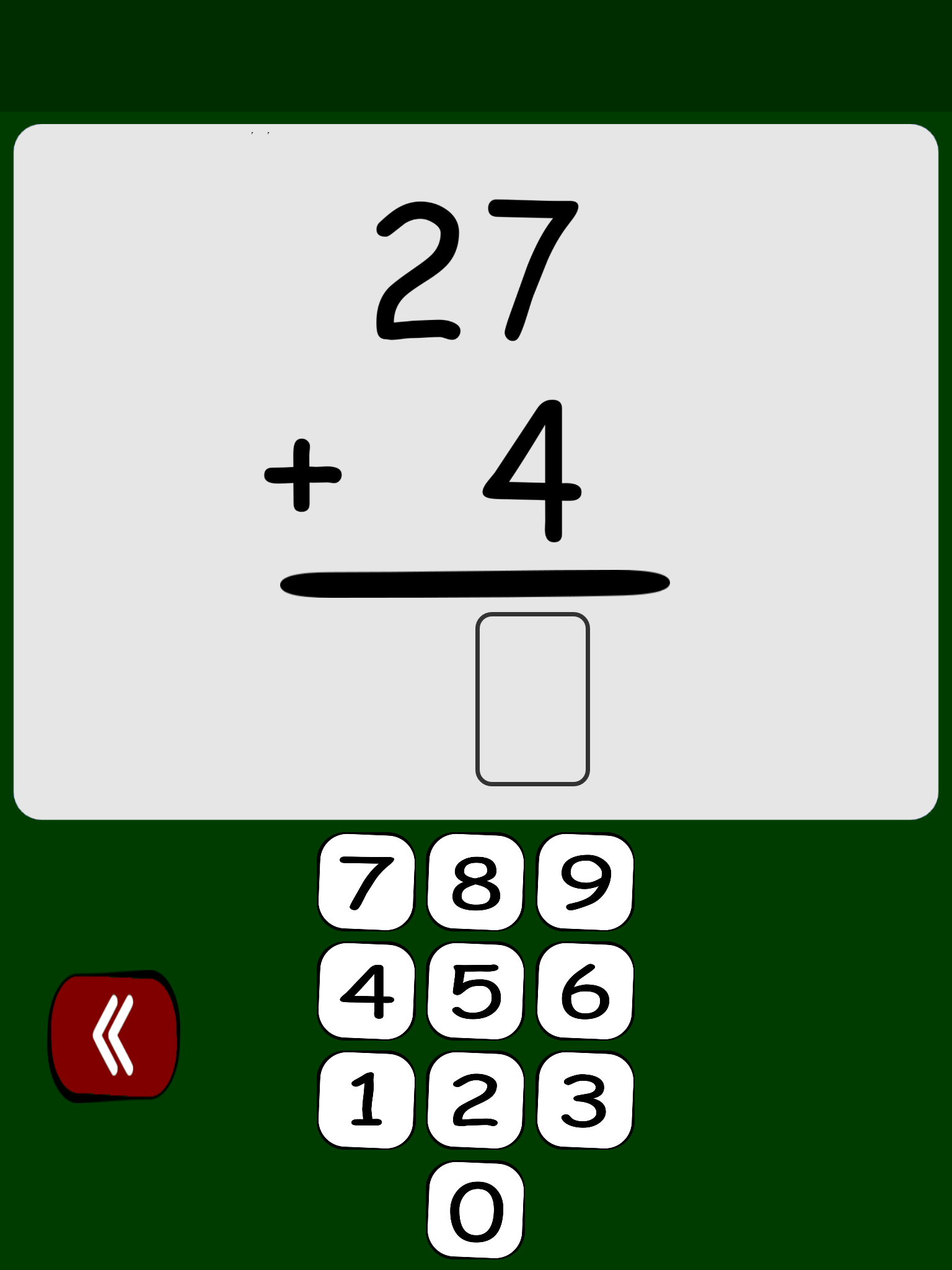

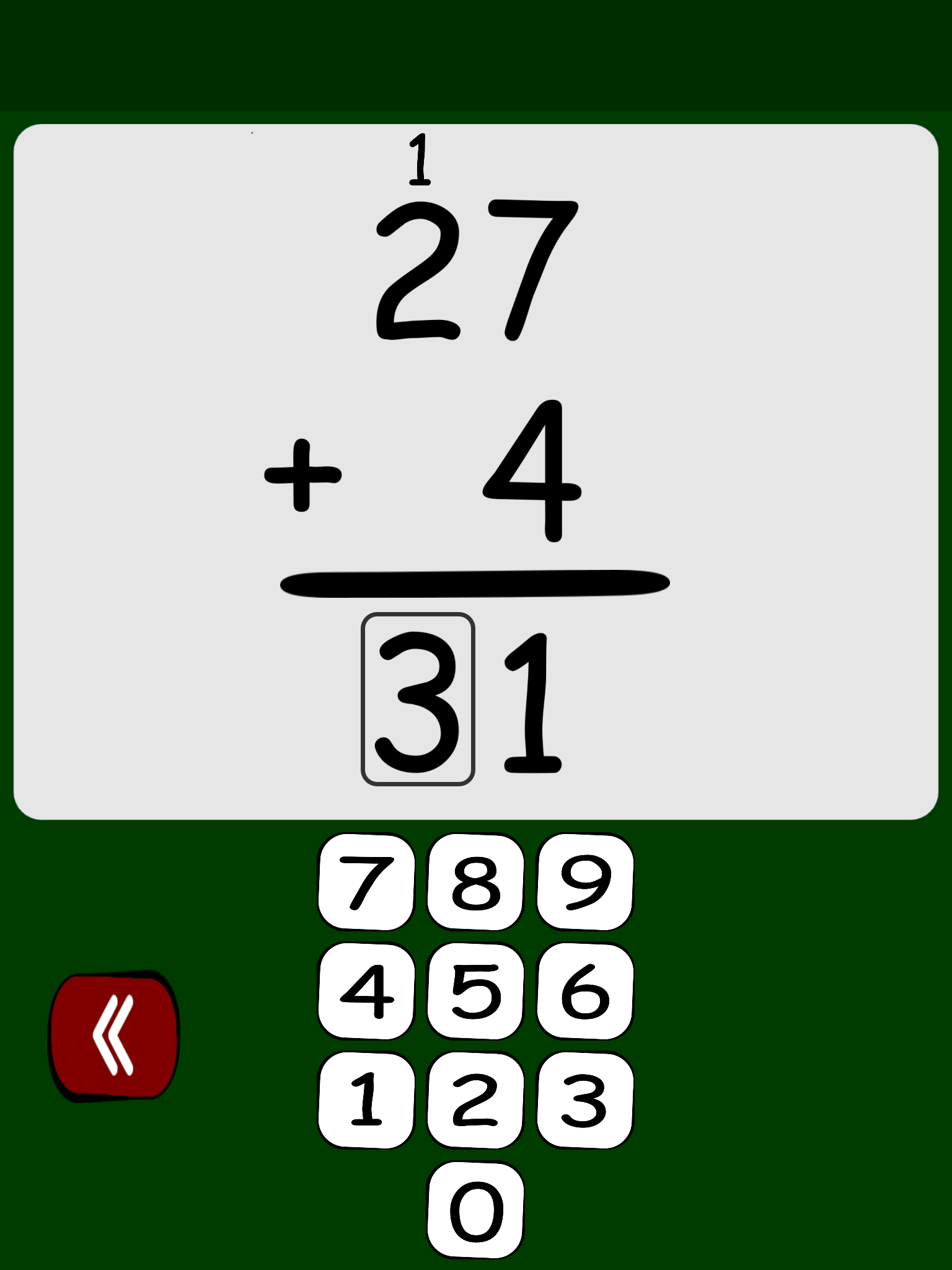
The carry notation is made visible by tapping the numbers in the top row. For example, in the above problem the 1 above the 2 is made visible by tapping the 2. Tapping the 2 again will hide the 1. This will work for all digits except for the rightmost digit. For some problems, when there is a carry but no digit in the first operand, tapping in the empty location where a number would be will accomplish the same thing.
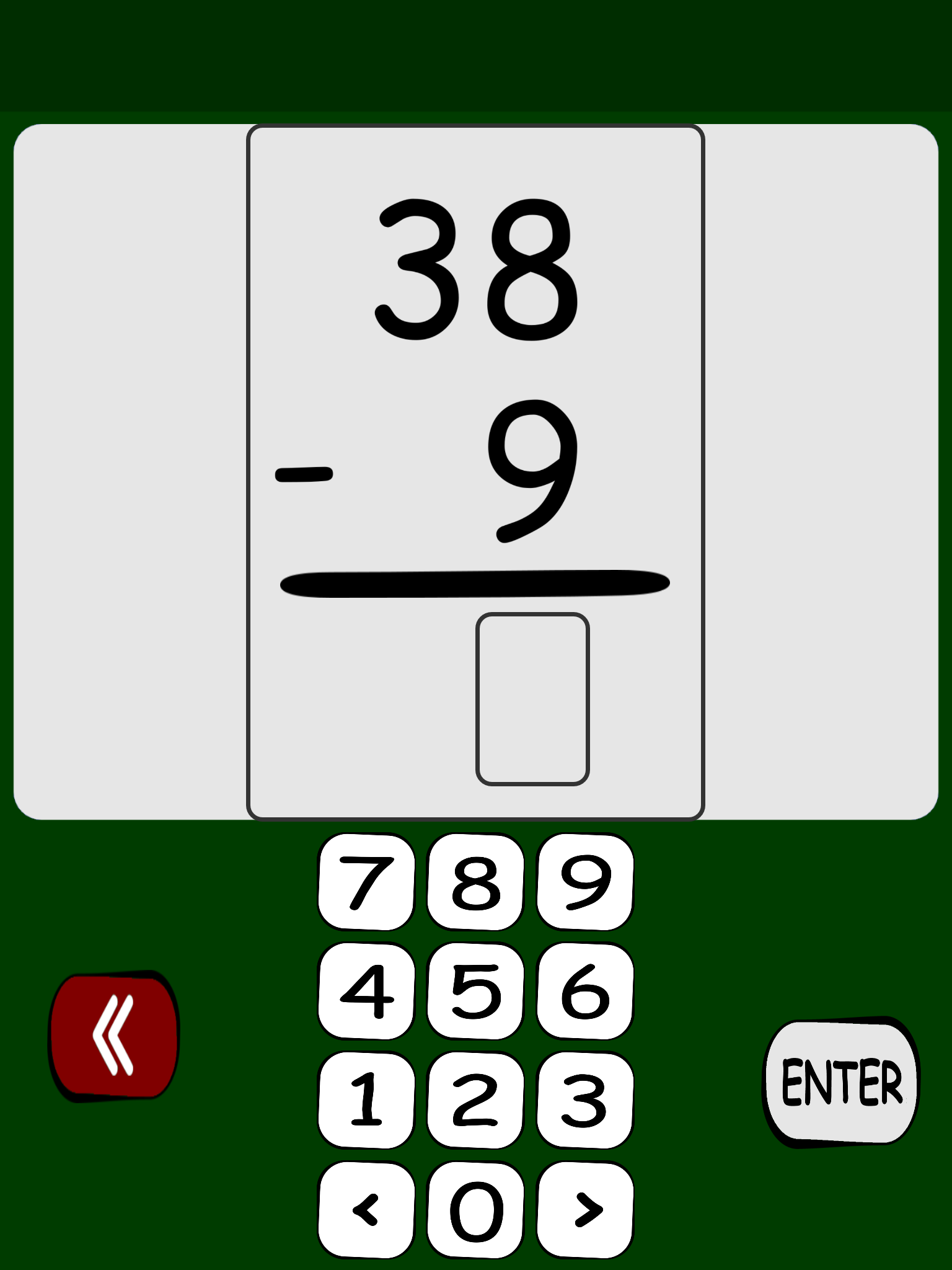
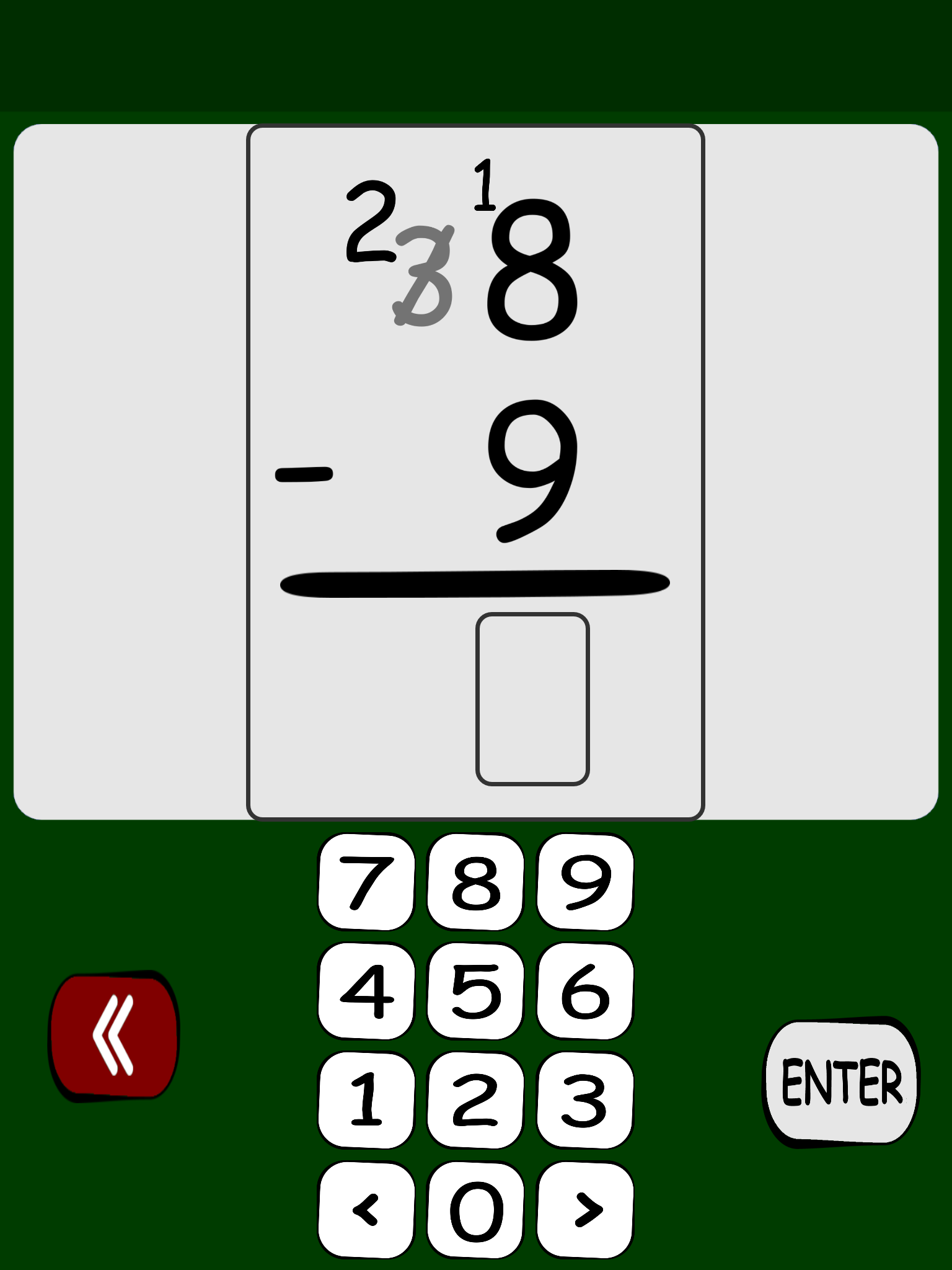
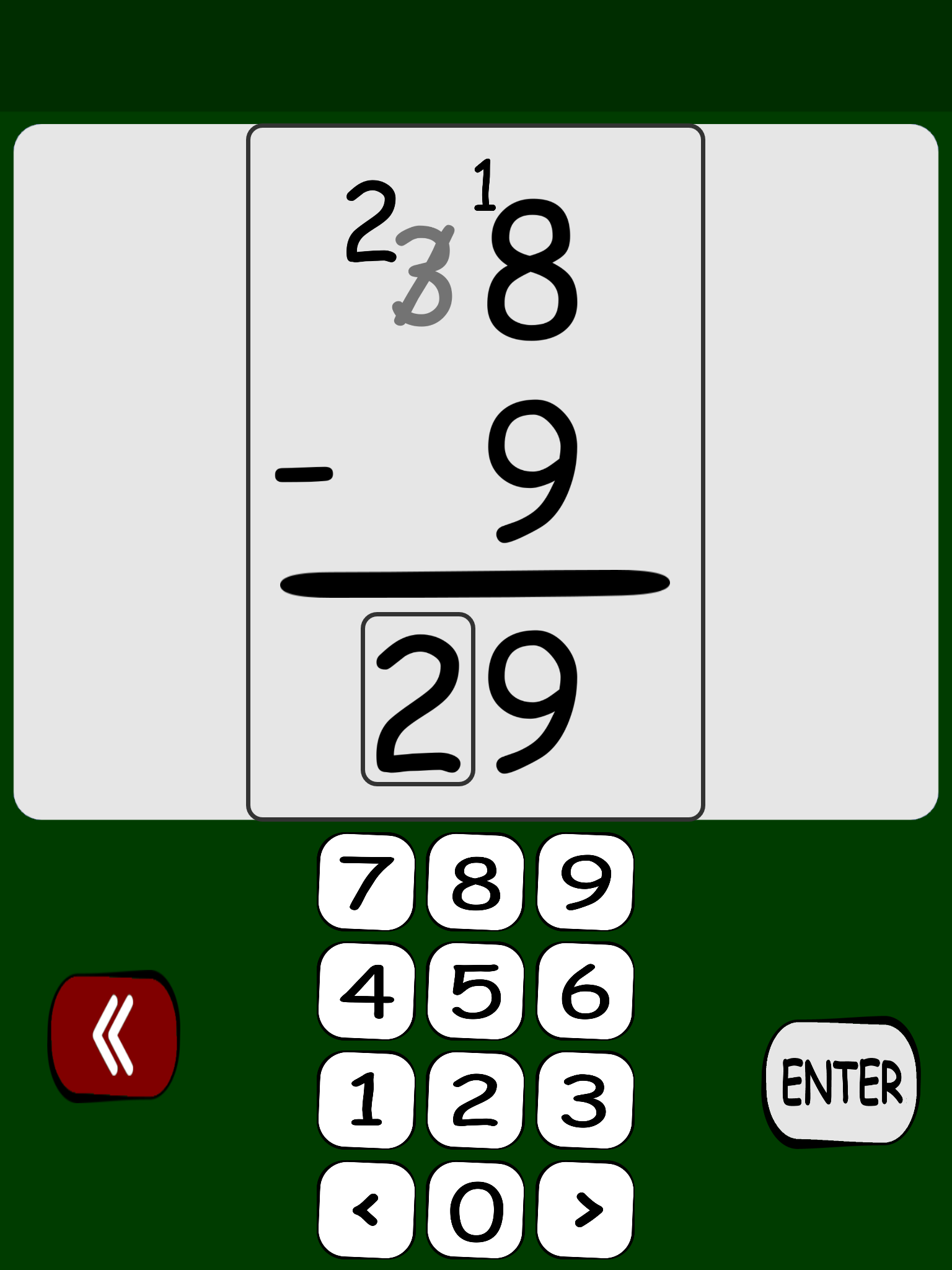
The borrow notation is made visible by tapping the numbers in the top row. Tap on the number from which borrowing is necessary. For example, in the above problem the borrow notation is made visible by tapping the 3. Tapping the 3 again will hide the notation. This will work for all digits except for the rightmost digit.